
Prompter
Prompter is my gift to the MidJourney AI creative community. What began as a personal project to better understand AI imagery since grew into a all-inclusive prompt builder and a multi-page visual notebook. With thousands of visits and a buzz on social media, I think we are onto something, so I plan to keep at it!
I created Prompter to assist, inspire, and ease prompt writing. A simple one-page user interface has everything you could possibly need. Select from common aspect ratios, various mediums, and even parameters like stylize, quality, chaos, and so much more… This project is completely free, though I appreciate all the and support many of you have given me.

Table Of Contents
Click on a category below to jump to that section.
- MidJourney → What is it? What can it do?
- Beginner Tips → Useful info everyone starting out should know.
- Workflow → Some methods I use to create with AI.
- Discord Commands → Prompting, settings, and more.
- Discord Interface → How to navigate the main interface.
- Prompt Writing → Things to think about when designing prompts.
- Image Prompts→ How to use your own images for style.
- Parameters → Fine tune your prompt with quality, stylize, seeds, and more.
- Aspect Ratios → Change up your frame size.
MidJourney
MidJourney is a powerful artificial intelligence (AI) powered tool that turns text into imagery. You simply enter a “prompt” (a descriptive string of words) and the AI analyzes the language then outputs an image via diffusion methods. Though the datasets were trained on billions of images, what you get back in return is one that has never existed before.
Among other popular AI options (such as Stable Diffusion, Dall-E 2, Craiyon, NightCafe) what makes MidJourney stand out above the rest is its amazing amount of flexibility with multiple algorithms, quality settings, stylize, and chaos), and the fact that the company is so community driven with some of the most helpful, fun, and inspiring creators. You can also make literally thousands of images per month on the Standard Plan, something hardly possible on other AI platforms.
The project is now in open beta! Sign up for a free Discord account if you don’t have one, then head over to the MidJourney website to join in the fun. To summarize, if you have never heard or seen text-to-image AI, it will blow your mind. No lie. If starting out seems intimidating, don’t stress, just read through my helpful MidJourney Notes and become a master!
Beginner Tips
This is not an official guide, just a passion project of mine. You can also browse the official MidJourney Documentation gitbook. That said, I like to organize things in different ways, so you might like my notes as well.
Signing Up
Discord → MidJourney runs through Discord, a popular chat application that (for meeeee) feels like you are in an awful 90’s chat room. That said, gamers love it, and a lot of people use it, so I’m probably finally just becoming an old grumpy man… If you do not yet have an account, hop over and sign up for free. It might be intimidating at first, but you’ll get the hang!
MidJoureny → Make sure you are logged into Discord then accept the MidJourney Invite to join. After your trial (which I am not going into detail in these notes, yet), I highly suggest you sign up for the $30 per month Standard Plan (or enter /subscribe in Discord and follow the link).
Subscription → Don’t do the $10 plan because you can’t use /relax mode (making images “free”) and you’ll use up all your GPU hours in a day or two. Seriously though. The $30 plan might seem like a high cost at first, but think about it - you can literally get thousands of renders in relaxed mode (fast mode is still limited). I made about 3,500 in my first month (mostly testing and playing) which is like $0.008 or so per image. That’s a steal, hence I think it’s silly when people complain about monthly payments.
Pro Tips
Bot → Chat with the MidJourney Bot all the time and things won’t be so cluttered. It’ll just be you and all your work. You can also create your own Discord Server, invite the MidJourney Bot, and do all your work in separate channels. I have channels for #projects, #testing, #help, and #contests to keep things organized. You can also invite your friends and make work together, but of course, they need to also be subscribed as well (otherwise one member could give free access to thousands, lol).
Relax → Immediately switch to relaxed mode by entering /relax in Discord. I suggest doing all your work in relax mode, then switch to /fast only for max upscales (which you can’t do in relaxed mode) or if you are really in a rush. Relax images are free, so you get infinite renders!
Shhhh → Don’t make boring posts on Facebook and stuff about how you don’t think AI is art or some crap. It’s an unoriginal boring platitude and just makes you look bitter and dull. The second you realize literally everything is art you’ll be a much happier person… Move on, and make new things. ✌
Workflow
I have two main workflows, and I really enjoy both ways of working. Basically, in one I spend a lot of time developing the prompt and testing it piece by piece until I get what I want, and in the other I just let the AI take the wheel.
Additive
Get a basic idea in your head, and don’t be dead set on what you imagine, but let AI guide you. Maybe a city being taken over by aliens… So type in your main idea to set the scene then run it. Now add to it. Run it. Add more. Run it.
/imagine prompt: a city street
/imagine prompt: a city street full of tall buildings
/imagine prompt: a polaroid photograph of a city street of tall buildings
Is something not right? Remove terms. Want more? Change terms. Once you get a really awesome scene going, you can try adding things to it. Are ideas going away? Add weights. Really want a look? Use a photo URL in the prompt and try to get it to come through. Maybe you start to care less about the alien theme because you got a new idea from the evolving scene. Go with it! So now we might have something like this in the end:
/imagine prompt: polaroid photograph of a city street:: tall buildings::5 night::3 laser lights::8 in the style of the video Blade Runner -quality 5 -stylize 1500 -chaos 25 -ar 16:9
See what you can build and where it can go. To go a step further, you can then download multiple images, and composite parts in Photoshop, blend with photography, paint over, or even blend a Max Upscale with a Light Upscale to get just the look you want. Get creative!
Poetic
I also really enjoy typing random things, more as a form of play, but many times the results are amazing and might inspire bigger ideas. So try some simple juxtapositions, lyrics from a Grateful Dead song, or pull a quote from the Bhagavad Gita and run a few variations.
/imagine prompt: half man half clock
/imagine prompt: in and out the window like a moth before a flame
/imagine prompt: I am become death, destroyer of worlds
Late one night (possibly after a nice glass of Scotch, or something) I typed in a bunch of complete gibberish into MidJoureny, not even real words, and got some of my favorite images to date. When you let the AI go crazy, you get some really interesting images. Also, a fun tip is to add a lot of stylize (like -stylize 50000) or chaos (-chaos 100) just to see where things go. Have fun!
Discord Commands
Below are some of the main commands that you enter into Discord. There are others that can be found in the main MidJourney guide, but I think these are the only ones you really need.
Beginner Commands
/help → Displays a bunch of helpful information to get you started.
/subscribe → Links you to your membership area with subscription options.
GPU Hours Commands
/info → Shows user info, images made (aka you have an addiction problem), if relax or fast mode is active, GPU hours remaining, in progress items, and such.
/fast → Fast mode, quick results but they count against your hours, so be careful!
/relax → Slow mode, slower processing but doesn’t count against hours, basically infinite.
NOTE: With a Standard plan, stay in relax mode all the time, unless you need to make a max upscale, then switch and switch back, that way you get thousands of images “free”.
Prompting Commands
/imagine → Main code to submit a prompt, then you click “prompt:” and type in your image ideas after that. You are going to use this a few thousand times (unless you use Prompter, which automatically adds this so all you have to do is copy and paste!).
/settings → Adjust default settings like version, style, quality, relax mode. Careful because when you make a change it “sticks” until you go back into settings and change it. I prefer to use parameters in prompts like -version or -quality, because then they only apply for that single prompt, not all as default, but settings is still a super useful tool.
/show → This is super useful if you want to bring up an old image to run upscales or variations, or to bring an image into a new channel you are working in, you just add the job ID to this code. There are two ways to get a job ID:
(1) Discord - You can hit an image with an envelope ✉️ emoji, and the MidJoureny bot will send you a message with the seed and job ID.
(2) MidJoureny - You can click the three dots to open options, then click Copy Job ID.
Now back in Discord you type /show then paste the job ID (like this: /show dfd1d656-d5c5-4e3e-a1b6-438c1b52ad81) and hit enter. It will bring up the old image so you can keep working!
Privacy Commands
/private → If you pay the extra $20 per month for a private account, entering this command will make all of your work private, only visible to you. I don’t do this because I personally don’t care who sees the random junk I make, but I can understand some more serious companies or artists wanting this feature so you can’t snoop on them.
/public → If you are in /private mode you can turn it off with this command, making your work visible to everyone. With /public turned on (or if you don’t pay extra for private) others can see your work, even if you are in a private server or chatting with the MidJourney Bot, because it will all show publically on your MidJoureny profile.
Discord Interface
Once you enter a prompt, completed images are sent back as a message in a grid, and read like a book, number 1 and 2 on top, and 3 and 4 on bottom. Then you can use various buttons to make variations or upscale.
Initial Options
↻ → Re-rolls the same prompt, new seed is used so all images will be different.
V1 → Make variations for the first image (V3 for third and so on), will make 4 more images based on the chosen one, so they will look similar but different.
U1 → Upscale the first image (U3 for third and so on), will upscale and might change some of the appearance, for better or worse, but that is where the next upscale options come into play.
Emoji Buttons → Rank Options appear after you upscale an image once. You can simply click an emoji face reaction (😖😞😀😍) to rate your image, and it will show on your MidJoureny gallery. This is useful if you have a few images you really like, or dislike.
Upscaling Choices
Upscale to Max → A final upscale that is only allowed in /fast mode. Makes image larger, adds details, but makes things a little weird for some images (you’ll likely see what I mean), in which case you can use the below upscale options:
Light Upscale Redo → If you aren’t happy with the upscale, this will redo it with less detail changes and look more similar to the previous image, however the image is smaller in resolution.
Beta Upscale Redo → New algorithm for upscaling, smooth like the Light Upscale, but with more details, and also much larger resolution.
Detailed Upscale Redo → This is basically the standard upscale, but the button shows up if you did a Light or Beta Upscale, basically meaning to go back to the original upscaler, adding details and such.
NOTE: You can also download an image and use external software to upscale them yourself. The benefit to this is that it will not change the style, just the size, whereas MidJourney upscale alters the look slightly. I use Visions Of Chaos (which is an amazing program if you have a killer computer), but HERE are other apps for AI upscaling.
Special Features
Remaster → Allows you to re-roll a v1/v2/v3 image into the new TEST algorithm, and adds -test and -creative to your prompt. Since TEST has many limitations, like aspect ratio and quality, things may not be perfect, but it is a pretty awesome feature to play with.
Remix → An exciting new feature that allows you to alter your prompt while making variations. To turn this feature on or off just enter /prefer remix or /settings then select Remix Mode. After you get your initial grid of images, the variation buttons (V1, V2) will allow you to edit your prompt. A box will pop up with your prompt, and here you can add or remove things, change parameters, or even move to the -testp algorithm, for example. Have a portrait of a man but with it was a woman? Now you can change it!
1. You can either alter a prompt, or delete it all and add new terms. For example, change “a magical forest” to “a magical forest at night” or remove the whole thing and just write “night” to see what happens. If you don’t see a nighttime scene show up, make a few re-rolls and see if it comes in (or use weights). Your last prompt will still have an effect on the new images, so if you say “fall” then change to “winter” you might still get some fall foliage colors in the snow.
2. Changing the aspect ratio tends to “stretch” the image as it recreates it, especially something like a landscape or drastic shifts in size. That said, I have done some cool stuff going from really tall to really wide, and it will change where people are and add to the background.
3. Stuff like quality or chaos are only set in the initial roll, so for example, you can’t start without quality then add -quality 5, nothing will change. Also image prompts don’t work in TEST as usual, but you can run a V3 image prompt then Remix to TESTP. You can’t add an image prompt via Remix though.
4. Since the codebase was changed, jobs before October will not allow you to run variations or remixes, so the simple fix is to hit the image with an envelope emoji, then the Bot will send you info. Copy the Job ID then type /show and paste the Job ID. This will bring the job back and variations and remixing will work!
5. As I learn more about this new feature I’ll update these notes.
Emoji Reactions
❌ Emoji → React to the image with the red :x: emoji to cancel and delete an image. This is a great to declutter your public MidJourney gallery while you work, but be aware that any image you delete is gone for good, on Discord and MidJourney. (I rarely use it because I am a disorganized slob)
✉️ Emoji → React to the image with the :envelope: emoji and the MidJourney Bot will sent you a DM with the seed, job ID, and video link (if you had -video in the prompt). When useful, I’ll bring up this emoji feature in other notes.
⭐️ Emoji → React to the image with the :star: emoji to mark as favorite. Your image will be posted in the #favotires channel on Midjournery’s Discord. Then you can be a star.
Prompt Writing
With the onset of artificial intelligence, artists are now magicians of words, and we craft our imagery with letters, syllables, and descriptors. Below are some of the basics to prompt writing and how it all works.
/imagine prompt: IMAGES PROMPT PARAMETERS
Descriptors
When creating Prompter, I broke down the language of a prompt into various descriptive themes, and then organized these themes into a database of terms. Below are the eight categories and what they do. Even if you don’t use my Prompter tool, this is a great way to think about building on a prompt idea.
Medium → The medium defines the main style of the output and is usually the most important descriptor. I find that placing it before the main idea of your prompt usually works best. This term can be as vague as an art movement (art nouveau style / psychedelic art style), a specific type of flat output (ballpoint pen drawing / blueprint), dimensional output (cross-stitch / relief carving), or even types of photography if you are a camera geek like me (calotype photograph / expired polaroid).
/imagine prompt: baroque art style of a circus tent
/imagine prompt: glitter painting of a treehouse
/imagine prompt: night vision photograph of a rock monster
Camera → The camera sets your point of view, your lens, and how the scene is spatially presented. You can go from one extreme (microscopy / macro lens) to another extreme (tilt-shift lens / satellite imagery), define focal traits (bokeh / long exposure), or even attempt to bring out the views in photography (8mm lens / 200mm lens).
/imagine prompt: a circus tent, ultra-wide angle lens
/imagine prompt: a treehouse, blurry
/imagine prompt: a rock monster, 500mm lens
Lighting → The lighting descriptor defines if there is a special aspect to light and shadow. You can use terms to describe really dramatic forms of light (contre-jour lighting / film noir lighting), a time of day (golden hour sunlight / sunset lighting), or certain forms of light (infrared light / laser light).
/imagine prompt: a circus tent, volumetric lighting (one of my all-time favorites!)
/imagine prompt: a treehouse, bioluminescence
/imagine prompt: a rock monster, silhouette lighting
Color → Sometimes when your prompt doesn’t contain a particular mood, the colors default to a blend of cool and warm, cyans and reds. If you really want a specific color style, mention it. You can be blunt (green / dark purple), describe types of color (neon color / vibrant color), computer displays (1-bit grayscale / RGB), or even really strange mixes (diffraction pattern color / tie-dye color).
/imagine prompt: a circus tent, dark-cyan
/imagine prompt: a treehouse, autumn colors
/imagine prompt: a rock monster, spectrum color
Artist → As an artist myself, I find it really fun to see what different scenes look like by other artists. it is entertaining to mimic, or combine. There is so much art out there, everything from Art Nouveau (Gustav Klimt / Antoni Gaudí), over to Post-Impressionism (Vincent van Gogh / Henri Rousseau), or even some photographers (Edward Burtynsky / William Henry Fox Talbot).
/imagine prompt: a circus tent by Antoni Gaudí
/imagine prompt: a treehouse by Vincent van Gogh
/imagine prompt: a rock monster by William Henry Fox Talbot
Film → Adding a movie or TV show, if the AI is trained on enough of the style, can really alter colors and elements. For example, some have a lot of drama (Dune / Spirited Away / Stranger Things) but others don’t work so well. I don’t use these often, but sometimes it’s fun.
/imagine prompt: a circus tent, in the style of the film The Cell
/imagine prompt: a treehouse, in the style of the film Enter the Void
/imagine prompt: a rock monster, in the style of the film Eraserhead
Video Games → I’m like half-gamer-ish. I grew up with Atari, NES, GameBoy - but few (Quake / Doom / Zelda) were my favorites, years ago. I would design levels and host deathmatches. In college I got everyone hooked up for local battles. Anyway, I enjoy some VR from time to time.
/imagine prompt: a circus tent, in the style of the video game Quake
/imagine prompt: a treehouse, in the style of the video game Doom
/imagine prompt: a rock monster, in the style of the video game Zelda
Descriptor → This section is for other descriptive terms that don’t really fit into the other categories, just additional ways to alter your prompt. I include two descriptor sections in Prompter, but you can multi-select, so pick what is useful to you. You can make things more complex (fractal / insanely detailed), speak about time (1950s style / Byzantine Empire), add elements (ice / fire), and so much more. Obviously, the list can be endless, but I provided enough in my database to get you inspired.
/imagine prompt: a circus tent, fractal
/imagine prompt: a treehouse, Byzantine Empire
/imagine prompt: a rock monster, ice
Separators
Comma (,) → A comma is a soft break in an idea, however, I have tested things with and without commas and saw literally no difference, so maybe this is just a good way to appease our brains so things look more organized.
Single Dash (-) → A single dash is said to be a good way to connect two or more terms into one idea. So while we all know “grandfather clock” is a big fancy clock, AI might think an old man, and a clock (maybe not, but just as an example). So you could type “grandfather-clock” to tie the words into one idea.
Double Colon (::) → A double colon is a hard break to split up parts, or to add weight (see below). This is actually a super-useful tool to break up one thing from another in your scene.
Weight → You can add weight, more focus or importance, to ideas using the double-colon right after them (blue::2), the higher the weight, the more the AI will focus on that idea, and negative weights will get less or no focus (similar to the -no command). Weights seem to be relative to each other and the whole. See examples below:
/imagine prompt: clock::5 clouds::2 green::-0.5
Clock gets most focus, less on clouds, and likely create images that are not green.
/imagine prompt: clock, clouds::2 green::-0.5
Commas do not separate an ideas, so in this case clock and cloud are weighted 2.
/imagine prompt: clock:: clouds::2 green::-0.5
Here I added a :: to split up clock and clouds, now clock is 1 and clouds is 2.
Others → Sometimes I see others using periods, brackets, parenthesis, and other odd punctuations in their prompts. I don’t see anywhere how they would help, and I assume the AI just ignores them anyway, so I don’t know. Maybe skip that unless you like to hit your keyboard more than you need to. I usually run tests when I see someone doing (((this))) to see if it does anything, and usually, it doesn’t. Maybe they are just getting their AIs mixed up.
Image Prompts
MidJourney uses image input for style, color, and so on - so don’t expect to use a photograph of something and get a similar image in return. Image prompts can be sort of hit or miss, but you can do a lot with them. I sometimes have luck with faces (like the example below) however I really find image prompts to be useful to define the look of a landscape.
/imagine prompt: http://site.com/image1.jpg -iw 2
Uploading
Since image prompts use URL links, the easiest way to use an image is to send a JPG to the Bot, then click the image, click Open Original, then copy that URL into your prompt. If you really want parts of the image to be carried over use the weight feature, and maybe describe the specific details in your prompt after the URL.
You can also feed a MidJourney image you make back into an image prompt. Do the same thing, click on the MidJourney image, Open Original, then copy that URL.
Image Weight
-iw → Add this parameter to the end of your prompt to add weight. Use a decimal value (1 for full strength, 0.25 is default, 0.5 for 50%, or even high numbers to really focus on the image over other parts of the prompt.
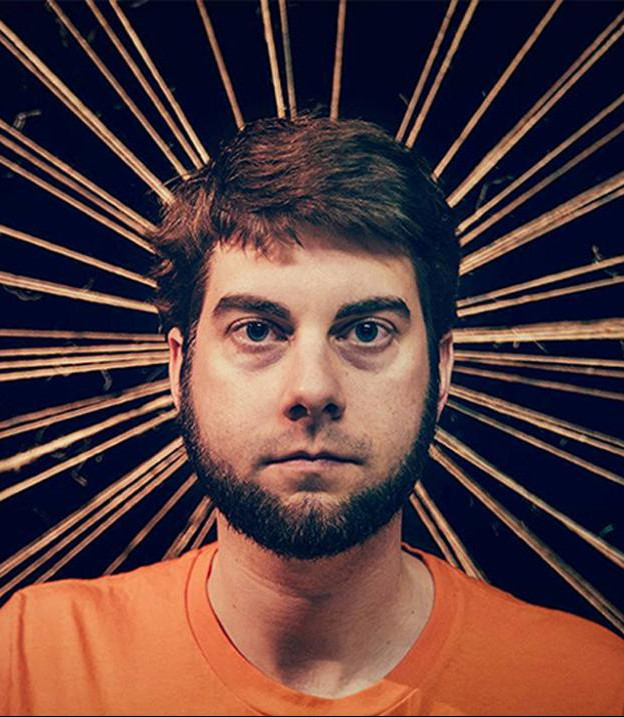
Image Input
(yep, that’s my beautiful face)
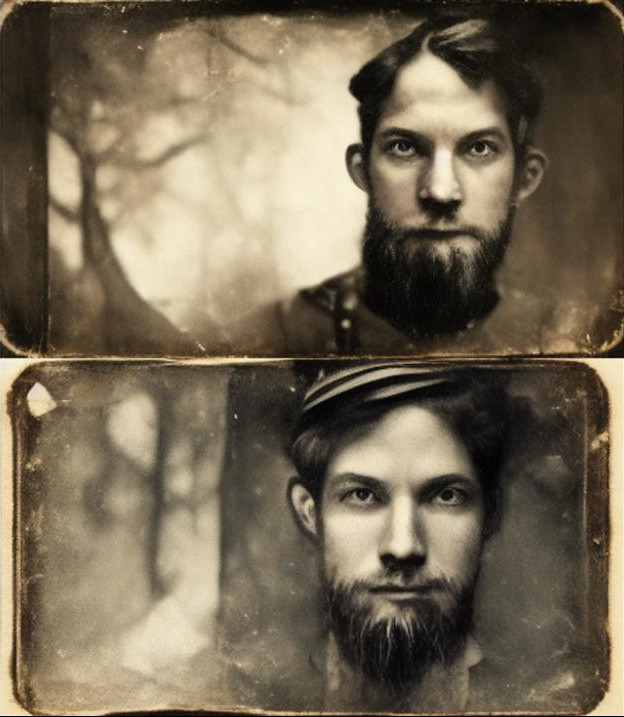
MidJourney Output
(adding the text: a tintype portrait)
Parameters
Parameters are little codes you can add to a prompt to change various things from the size to the algorithm version used. It is best practice to put all parameters (the terms below) at the end of a prompt. If you are using my Prompter tool, you can simply check boxes and enter numbers, so no need to really know all of them by heart.
Frame Size
-aspect or -ar → Used to add an aspect ratio that isn’t a square (-ar 16:9 for a wide output)
-w and/or -h → Similar to aspect, you can use these to set width and height. (-w 1000)
Image Parameters
-stylize → How stylized images are (-stylize 800) (650 off, 2500 default, 60000 crazy)
-quality → Spends more time on details (-quality 2) (0.25 faster, 1 default, 5 super high)
-chaos → How random and abstract the output is (-chaos 85) (1 to 100, higher is chaotic)
-stop → Used to stop image generation at a percent (-stop 50 to end 50% through)
-tile → Creates a seamless texture that you can tile as a pattern (works best with TEST).
-no → Do not include something, same as using a weight of -0.5 (-no trees would not use trees or -no blue would not use blue, or blue::-0.5)
Algorithms
-version 1 → Uses old algorithm from version 1, more abstract, good for macro and textures
-version 2 → Uses old algorithm from version 2 (they recently switched to v3 as default)
-version 3 → This is not needed, as Version 3 is currently the default of MidJoureny.
-hd → Algorithm better for large images, less consistent composition, good for abstracts.
-test → (temporary beta testing) New algorithm, general artistic mode, more coherence. (there are many limitations, but since this will change by the hour I am not adding details here)
-testp → (temporary beta testing) New algorithm, photo-realism mode, more coherence. (there are many limitations, but since this will change by the hour I am not adding details here)
-creative → (temporary beta testing) Use with -test or -testp to make the image more creative and chaotic.
Upscaling
-uplight → Upscale light, results are closer to the original, smaller file though.
—upbeta → New algorithm for upscaling, smooth, more details, and larger final resolution.
Seeds
-seed → Variations use the same style, number from 0 to 4294967295 (-seed 1234)
-sameseed → All images will use the same seed, to look similar (-sameseed 1234)
Generative Video
-video → Saves a progress video in DM, need to react with a ✉️ emoji too!
The video command only works for the first 4-up. Once the image is finished give it a ✉️ emoji and the Bot will DM you the images and video to download. If you do a regular quality image, the video is short and fast (7 seconds), however, if you include -quality 5 or something, you get a really long video (like 34 seconds). Just make sure to stay in /relax mode otherwise higher-quality settings will eat up a lot of GPU hours.
Aspect Ratios
Images in MidJoureny are square by default, however, you can use parameter commands (-ar, -w, -h) to alter the aspect ratio of your images. You can match screen sizes, use 9:16 for a story on social media, or get REALLY wide or tall with them. In Prompter, I broke down the ratios into categories for Cinema, Phones, Photography, and more. For visual examples of each of these, check out the chapter on Aspect Ratios.
Cinema
4:3 → Close to early television and film (-ar 4:3)
16:9 → Modern HD standard for televisions, computer monitors, phones (-ar 16:9)
2.39:1 → Close to anamorphic widescreen, widest cinematic, landscapes (-ar 239:100)
Phones
1:1 → Square, Instagram, default in MidJourney (-ar 1:1)
9:16 → Vertical HD, standard for most phones (-ar 9:16)
9:19.5 → Close to vertical for new iPhones (-ar 90:195)
Photography
3:2 → Widest view - prints at 4×6, 8×12, 16×24, 20×30, 24×36, 30×40 (-ar 3:2)
2:3 → (same as above, but vertical) (-ar 2:3)
5:4 → Less wide - prints at 8×10, 16×20, 24×30 (-ar 5:4)
4:5 → (same as above, but vertical) (--ar 4:5)
Super Wide
600px → Kinda Wide (-w 600)
800px → Wide, short (-w 800)
1000px → More Wide, short (-w 1000)
1500px → Very wide, short (-w 1500)
2000px → Super wide, short (-w 2000)
3000px → Holy shit wide, short (-w 3000)
Super Tall
600px → Kinda tall (-h 600)
800px → Tall, narrow (-h 800)
1000px → More Tall, narrow (-h 1000)
1500px → Very tall, narrow (-h 1500)
2000px → Super tall, narrow (-h 2000)
3000px → Holy shit tall, narrow (-h 3000)
Others
5:8 → Tall (-ar 5:8)
8:5 → Wide (same as above, but horizontal) (-ar 8:5)
2:1 → Taller (-ar 2:1)
1:2 → Wider (same as above, but horizontal) (-ar 1:2)
9:20 → Taller-er (-ar 9:20)
20:9 → Wider-er (same as above, but horizontal) (-ar 20:9)
©2022 Shane McGeehan and www.PrompterGuide.com